
Free halftone and riso effect maker with real riso inks
The print look of my music video, given away. Pick up to three real Risograph inks, print any picture as halftone dots and save it as a PNG, all on your own device.
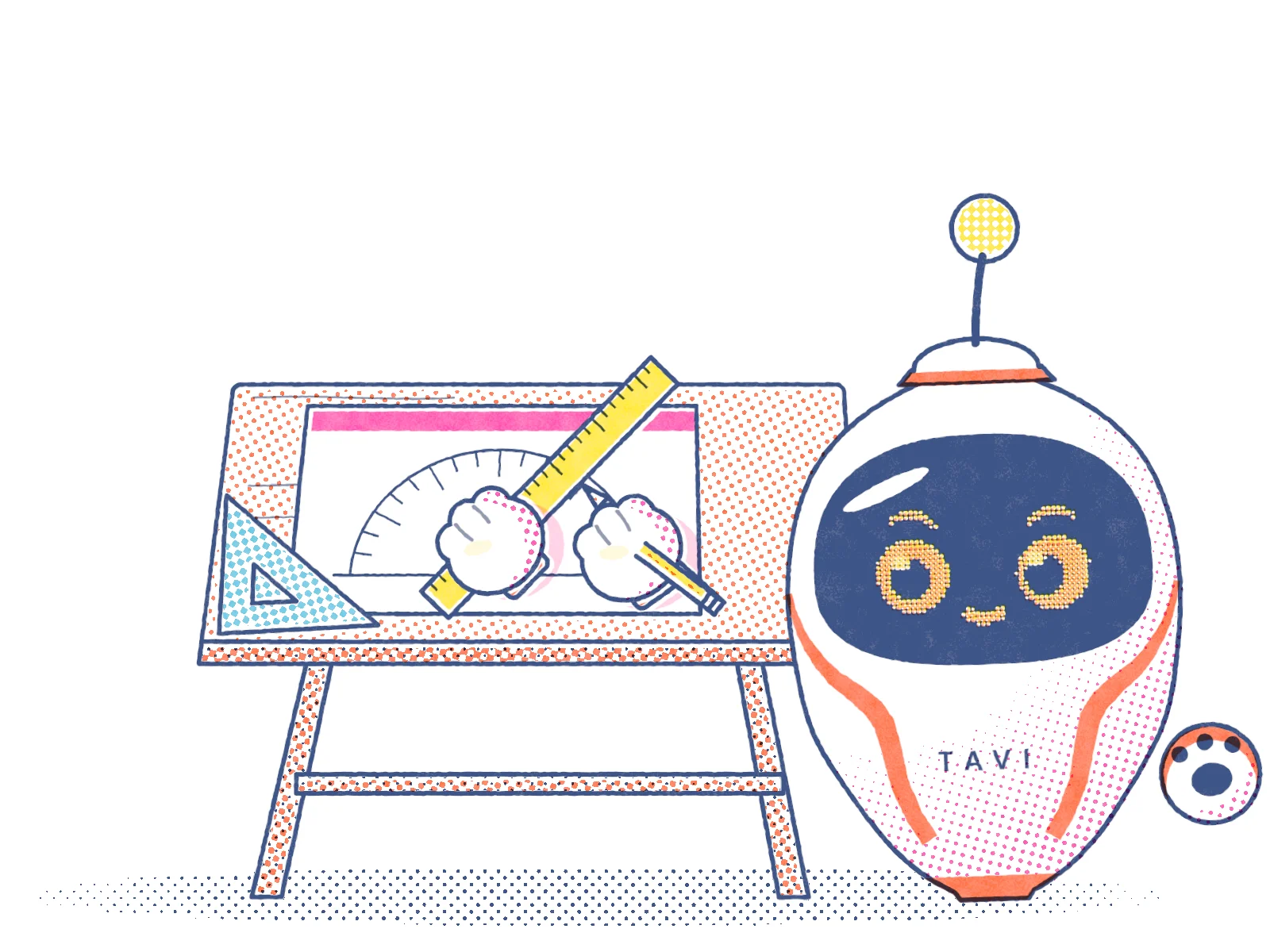
This is a free halftone and riso effect maker. Give it a picture and it turns it into something that looks like a Risograph print: one, two or three real riso ink colors laid down as halftone dots, a little off register, with grain in the ink and the paper. It runs in your browser, and your picture never leaves your device.
It's the print look of my music video, Don't Close the Tab, made into a tool. Use it for a poster, a zine page, a slide or a social post, or to try out ink pairings before a real riso print. The sample is a frame from the film.
Picture
You can also drop an image on the preview or paste one. It stays on your device: the tool runs in your browser and uploads nothing.
Screen angles
Each ink's dots line up on their own angle, so the screens don't clash. Picking an ink resets the angles.
Save
Dot size and misregistration are measured in pixels at this size.
How to make a halftone or riso effect
- Choose an image, drop one on the preview or paste one. Anything your browser can open as an image works, including JPEG, PNG and WebP.
- Pick a preset. Tavi prints in Federal Blue, Fluorescent Pink and Yellow, Riso two-color in Federal Blue and Fluorescent Pink, Duotone in Federal Blue and Orange, and Newspaper in Black with big dots.
- Change how many inks and which ones. One ink makes a classic halftone image, Duotone prints the picture's tones in two inks, and Two inks or Three inks split its colors between the inks you pick.
- Set the dot size, misregistration, grain and ink density under Print, and brightness and contrast under Tone. The preview follows each slider as you move it.
- Press View at 100% to see the dots as they'll be in the file. Drag the print, or use the arrow keys on it, to look around.
- Choose a size and press Save PNG. With the paper set to Ink only, you get a transparent PNG of just the inks, to lay over a background of your own.
The page loads the tool once, and after that nothing you do in it goes over the network. I checked by recording every request the page made while I printed the sample in every mode and preset, saved four PNGs and loaded and printed a photo of my own. There were none.
How Risograph printing works
Risograph is a brand of digital duplicator made by the Riso Kagaku Corporation, introduced in Japan in 1980. It uses a thermal head to make microscopic holes in a stencil, called a master. The master is wrapped around a drum, and the ink is pushed through the holes onto the paper.
Each drum holds one ink, and drums and inks can be swapped, so a print in several colors is built up one ink at a time. Some models have two drums and print two colors in one pass. Riso ink is made from soybean oil, and it needs uncoated paper.
A riso prints tones as halftones: dots that change size with the tone. When the dots are small, the eye reads them as smooth shades.
A riso print is never exact, and that's a large part of its look. Dolce Publishing, which prints on its own two-color riso, lists registration being off among the imperfections to expect. It also says large areas of solid ink show slight variations, and that overlapping inks make new colors. Artists took up riso printing in the 2010s, especially for zines and comics.
How the tool copies a riso print
Everything happens in a WebGL shader, a small program that runs on your device's graphics chip, which is why the preview can keep up with the sliders. It's the approach of the print pass in my music video, changed to work from photos. For each ink it does what the machine does:
- It separates the picture: it works out how much of each ink every part of the picture needs. The next section explains how.
- It prints each amount as a halftone screen, dots on a grid. The dots are round in the light tones, meet as a checkerboard in the middle tones and leave round holes in the darks.
- It sets each ink's grid at its own angle, because screens laid over each other make a moiré pattern, and turning them apart reduces it. The defaults are my film's: the darkest ink at 45 degrees, Yellow at 0, the others at 15, 75 and 30.
- It keeps the darkest ink in place and moves every other ink by the misregistration you set, turned by a sliver of a degree, so the colors sit slightly off the lines.
- It makes the ink uneven: denser in some places than others, at a fine grain and in larger patches. The dots' edges wander a little, and the paper has fiber in it.
- It multiplies the inks over the paper, the way see-through ink filters light. In the tool, Fluorescent Pink over Yellow prints a warm red and Federal Blue over Yellow a dark green.
The twelve inks are real Risograph colors. Their hex values are the ones the stencil.wiki ink list gives, also packaged as riso-colors by Matt DesLauriers: the five my site is printed in, plus Black, Bright Red, Purple, Blue, Teal, Green and Mint.
How it decides where each ink goes
One ink follows the picture's brightness. Black prints as solid ink and white stays bare paper, and every tone in between gets the amount of ink that puts it in the same place between the two.
Duotone ignores the picture's colors. The light ink carries the light and middle tones and the dark ink comes in for the shadows, starting where the "Dark ink comes in at" slider says.
Two inks and Three inks use the colors. For each color in the picture, the tool searches for the amounts of your inks that, printed on top of each other, come closest to it. It measures closeness in Oklab, a color space designed to predict how people see lightness, chroma and hue.
A color your inks can't make comes out as the nearest mix they can. With Federal Blue and Fluorescent Pink, reds print mostly in the pink, blues in the blue and the darkest parts in both. In every mode, white stays bare paper and black becomes the darkest mix your inks can make.
What this tool can't do
- It saves one finished picture. It doesn't save each ink as a layer of its own.
- The ink colors are screen colors. Ink on paper looks different from any screen, so treat a print from the tool as a sketch of a riso print.
- The biggest print is 4,096 pixels on the long side. Pictures larger than 2,048 pixels are scaled down for the preview, and bigger prints read from a larger copy.
- The PNG files are large, because grain doesn't compress well. The sample, saved at 1,600 by 900 pixels in the Tavi preset, came out at 3.6 MB.
- It needs WebGL, the browser feature it draws with. If your browser has it switched off, the tool says so.
- On a small screen the preview blends the finest dots, so they don't shimmer. View at 100% shows them as they'll be saved.
Tips for a print that looks like real riso
- Pair one dark ink with one or two bright ones. The dark ink holds the shapes and the bright ones carry the color.
- Keep misregistration small. I use 2 pixels on a picture 1,600 pixels wide, and past about 5 it starts to look like a mistake to me.
- Use bigger dots for pictures that will be seen small, like on a phone, and smaller dots for large prints.
- If a print looks flat, raise the contrast until the darkest parts print as solid ink.
- Keep fine detail in one ink. In my music video, anything drawn in two inks picked up a colored fringe when the layers shifted, so text and thin lines went in the dark ink.
- Overlap two bright inks on purpose. Fluorescent Pink over Yellow prints a warm red, and Aqua over Yellow prints a green.